
SPLASH PAGE APPEARANCE
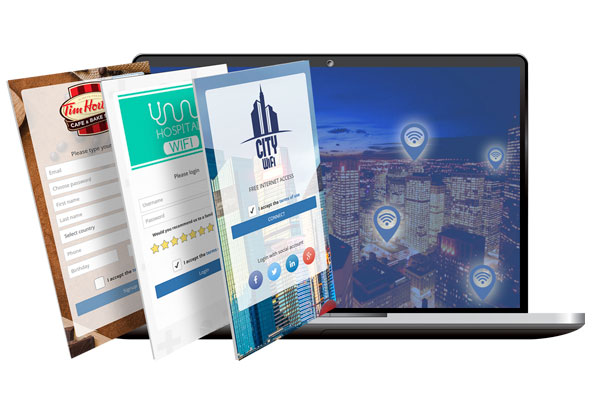
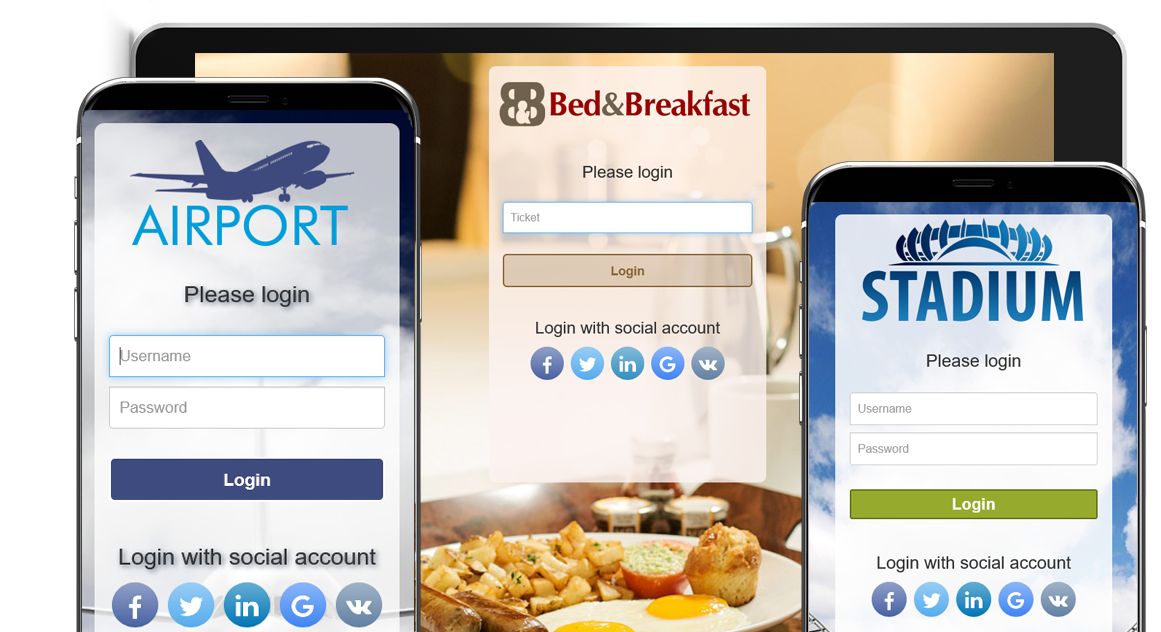
The normal user experience when connecting client devices to a Wi-Fi network with a Splash Page is that the Splash Page is opened automatically, thanks to the Automatic Detection of Captive Portal mechanism, so that the user can see it and proceed with the authentication to get full access to internet.
What is CNA?
The CNA, Captive network assistant ( WiFi popup or overlay), is the actually limited browser that automatically opens on most mobile devices these days.
When smarhphone OS (iOS, Android, Windows…) detect that they are in a captive portal environment it will automatically open CNA browser.
By smartphone OS default, it is set to help users to navigate any potential captive portal process, and also there are no SSL cert warnings.
If the CNA is not present in smartphone OS, user will need to open a browser app and trigger the captive portal manually by typing some URL.
How CNA works?
When a smartphone connects to the WiFi network it pings connectivity URLs (iOS, Android, Windows…) and checks if there is a working Internet.
If the smartphone can’t connect to the connectivity URL it opens automatically limited CNA browser that provides login page.
Immediately after login, when user connects to the Internet, the smartphone automatically closes CNA browser, and for that reason a user may not be redirected to the URL configured or welcome page.
Users who ignore CNA and login to the Internet using their favourite browser app (Chrome, Safari, Opera…) will not have these issues.
Even if Antamedia Hotspot software supports the Automatic Detection of Captive Portal it’s important to state that the decision to automatically open or not the Splash Page is entirely taken by the OS on the client device.
Different Wi-Fi client devices implement this mechanism with different approaches:
When the Splash Page is not automatically opened by the client device, the reason might be one of the following:
If all the previous points have been verified and the client device does not open automatically the Splash Page, it might not support the Automatic Detection of Captive Portal.
In this case the only solution is to manually open the Splash Page.
It will be needed to inform the user about how to proceed:
Wi-Fi users are becoming every day more and more tech savvy, and this procedure is becoming the equivalent of restarting the computer when something is not working properly.
The Splash Page is not triggered when iOS devices connect to WiFi
How iOS determine if it has an Internet Connection
Some iOS devices are not redirected to the Captive Portal when the user gets connected to WiFi network with iOS device.
The Captive Portal is not triggered automatically when is the testing domain accessible.
If the testing domain is not accessible, CNA (Captive Network Assistant) popup is shown.
How to test it on iOS
Make sure you have no active internet session. If yes, wait until your active session expires.
Possible solution
The Splash Page is not triggered when Android devices connect to WiFi
Some Android-based devices are not redirected to the Captive Portal when the user gets connected to WiFi network with Android device.
The Captive Portal is not triggered automatically when is the testing domain accessible.
On some Androids is that feature missing.
How Android determine if it has an Internet Connection
How to test it on Android
Make sure you have no active internet session. If yes, wait until your active session expires.
Possible solution
The Splash Page is not triggered when Windows devices connect to WiFi
Some Windows devices are not redirected to the Captive Portal when the user gets connected to WiFi network with Windows device.
The Captive Portal is not triggered automatically when is the testing domain accessible.
Network Connectivity Status Indicator (NCSI) service testing internet connectivity has been introduced in Windows Vista at first.
How Windows determine if it has an Internet Connection
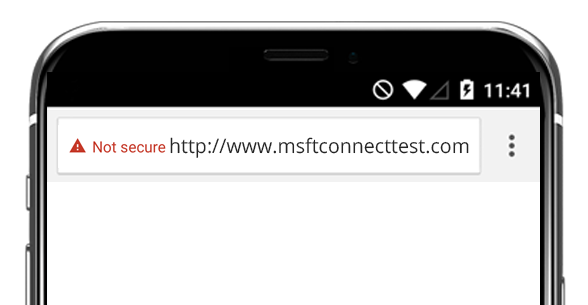
Windows does indeed check a Microsoft site for connectivity, using the Network Connectivity Status Indicator site (NCSI).
There are a few variations of the connection checking process:
How to test it on Windows
Make sure you have no active internet session. If yes, wait until your active session expires.
Possible solution
Our customers

